Calendar sync
Connect Famora with Google Calendar, Outlook and Apple Calendar
You don't have to rebuild your family calendar from scratch: bring an existing Google, Outlook or school calendar into Famora, or the other way round, subscribe to your Famora calendar from Google Calendar, Outlook or Apple Calendar. Both directions are read-only and one-way — we explain exactly what that means below, honestly.
Important first: this is not two-way sync
Famora does not sync calendars live in both directions. There are two separate, read-only connections: Famora reads an external calendar but never writes back to it — and another app reads your Famora calendar, but changes made there never flow back to Famora. Change an event only in Google Calendar, and it stays unchanged in Famora, and vice versa. Create each event where the family should ultimately see it.
Bring a Google, Outlook or school calendar into Famora
Pull an existing calendar into Famora by link — handy for a school calendar, a club calendar, or a second Google Calendar the whole family should keep an eye on.
Copy the secret calendar address
In Google Calendar, go to Settings → your calendar → "Secret address in iCal format" and copy the link. In Outlook it's under Publish calendar; in Apple Calendar, Share Calendar → Public Calendar.
Add it in Famora
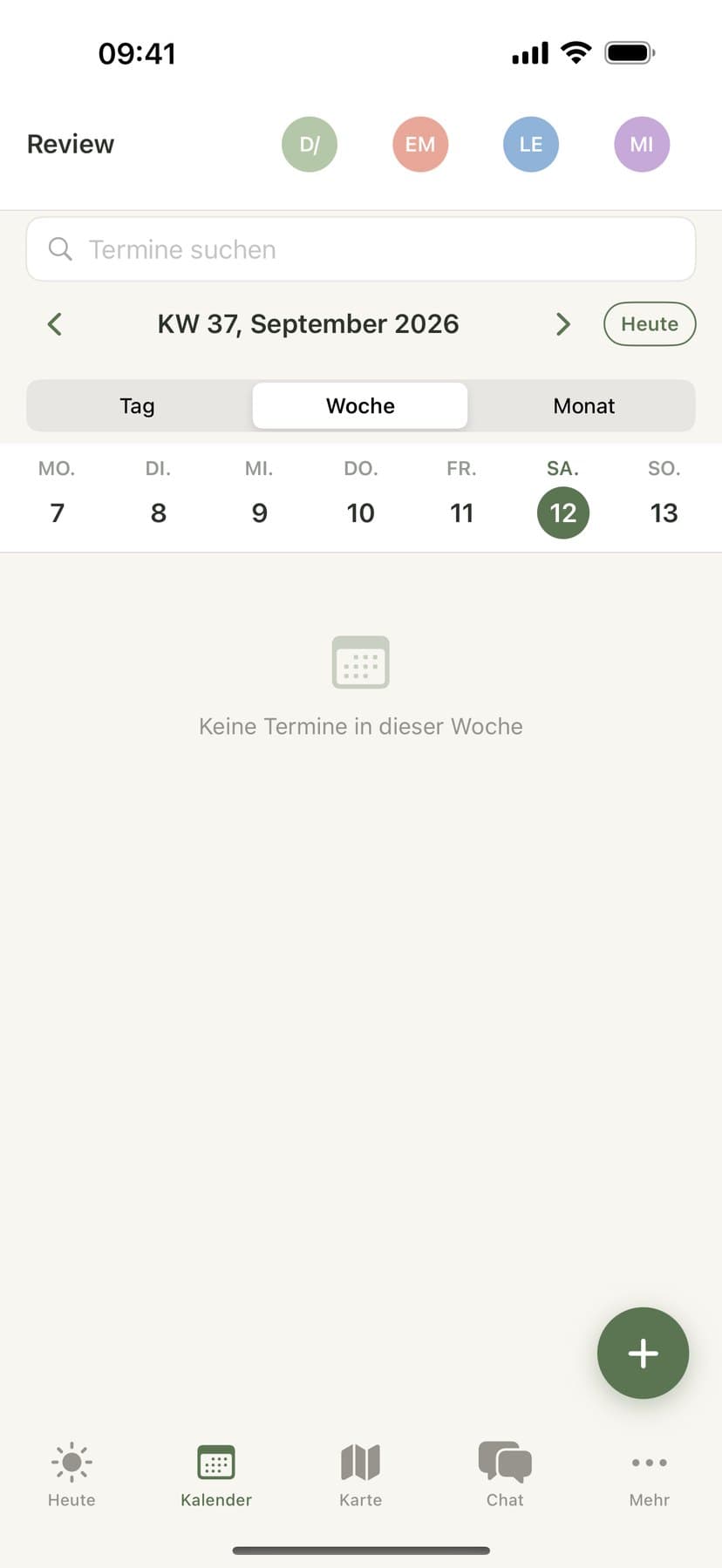
In Famora, open Calendar → External calendars → Add, paste the link, and give it a name and a colour.
Wait for the first sync
Famora fetches the link right away. If that takes longer, a background job finishes within seconds; after that, Famora refreshes it automatically every six hours.
See the events as an overlay
The events appear read-only next to your own in the family calendar. Editing, dictating, or setting reminders only works for events created in Famora itself — not for imported ones.
How many external calendars you can bring in at once depends on your plan (see below). Only adults in the family can add, rename or remove them; every member can see the imported events.
Subscribe to your Famora calendar from Google Calendar, Outlook or Apple Calendar
It works the other way too: subscribe to your Famora family calendar from whichever calendar app you already have open every day.
Get your personal subscription link
In Famora, open Calendar → Subscribe to calendar and copy your personal link. It shows the whole family calendar, so treat it as confidential as a password.
Add it in Google Calendar
Open Google Calendar in a browser, click the plus next to "Other calendars" → From URL, and paste the link.
Add it in Outlook or Apple Calendar
In Outlook: Add calendar → Subscribe from web. In Apple Calendar: File → New Calendar Subscription, then paste the link.
Renew the link if you need to
If someone loses their device, or access should end, generate a new link under "Subscribe to calendar" in Famora — the old one stops working immediately.
How often the other app refreshes the link is up to that app — Google Calendar, for example, often only checks every few hours to once a day, not Famora. Changing something directly in Google Calendar, Outlook or Apple Calendar has no effect on Famora.
Import a calendar file, for example from TimeTree
Switching from another family app like TimeTree, or only have a calendar as a file? Import the .ics file once — it turns into ordinary, editable Famora events.
Export your calendar as an .ics file
Export your calendar from the app you're leaving as an .ics file (in TimeTree, for example, via Settings → Export calendar).
Upload the file to Famora
In Famora, open Calendar → Import calendar and choose the file. Famora shows you a preview, including events you already have.
Pick which events to keep
Choose which events to bring over and confirm. They become real Famora events you can edit, assign and set reminders for.
The import runs once and creates your own calendar events instead of a lasting connection — if the source file changes later, you import it again. Unlike bringing in external calendars, file import has no cap on any plan.
What each family member sees
An external calendar you bring in is a family matter: once an adult adds one, every member sees it read-only next to their own events. The outgoing subscription link, on the other hand, is personal — each member gets their own, but both show the same complete family calendar. Children without their own device see imported external events in their profile just like everyone else.
What depends on your plan
Bringing in external calendars is included on every plan, only the number grows: 1 external calendar on Basis, 3 on Family, 5 on Premium, 10 on Assistant. Subscribing to your Famora calendar and the one-off file import are unlimited on every plan.
Frequently asked questions about syncing your calendar
- Does Famora sync with Google Calendar in both directions?
- No. You can bring your Google Calendar into Famora by link (read-only, refreshed every six hours), or subscribe to your Famora calendar from Google Calendar (also read-only). Change an event on only one side and the other stays as it was — it's not two-way sync.
- How do I sync Outlook with Google Calendar through Famora?
- Not directly — Famora doesn't connect Outlook and Google Calendar to each other. You can connect both to Famora separately instead: bring your Outlook calendar into Famora, and subscribe to your Famora calendar from Google Calendar, so every event ends up visible in one place.
- How often does a calendar you brought in refresh?
- Famora automatically refreshes calendars you've brought in every six hours. If you need the latest events right away, you can refresh manually in calendar settings, up to once a minute.
- Can I import a TimeTree calendar file?
- Yes. Export your TimeTree calendar as an .ics file and upload it under Calendar → Import calendar. Famora shows a preview, you choose what to keep, and it becomes editable Famora events.
- Do I get reminders for calendars I brought in?
- No. For external calendars you bring in (Google, Outlook, school), Famora doesn't set push reminders and doesn't check them for scheduling conflicts — they're read-only. Reminders and conflict checking only work for events you create directly in Famora or bring over with a file import.